
AI Powered Chat Bots
AI powered chat bots are optional helpers that answer incoming private messages for an account, as you. An account can have several, each answering its own private chats, and a bot can also be registered on Mattermost or Telegram as a bot account of its own that people message directly. They work with any OpenAI-compatible API.
Your messages go to the provider
Every conversation a bot answers is sent to the AI provider you configure.
What bots do and don't do
- They answer DMs only. They never act in groups or channels, and never start a conversation. On Telegram, Mattermost and WhatsApp one bot can also answer your chat with yourself (see Your own chat).
- They never answer email.
- A bot belongs to one account. A private chat is answered by at most one bot: a bot takes all of the account's private chats, or the ones picked for it.
- A bot either asks you first with a suggested reply, or replies automatically.
- On Mattermost, where threads live on the server, a bot answers where the message was written: inside its thread, with that thread as the conversation, or in the main chat. On Telegram, Matrix and WhatsApp its reply quotes the message it answers.
- If you answer a chat yourself while a bot is still drafting, its draft is dropped.
- A bot sends at most 20 replies an hour in one chat and 120 an hour in all, so no one can run up your provider bill by writing to it. Past that it waits for the hour to pass, and the bot pane says why. Your own chat has no limit.
Violet marks everything bot-related: the ✦ icon, the suggestion card and the messages a bot sent.
AI providers
Providers are kept in Settings → AI providers…. The right pane lists each provider with its default model; Enter on one opens it (▸/▾) to show its rows: Name, URL, Key from (the environment variable) and Model. Enter edits a row in place, Enter again saves and Esc cancels. Delete provider… asks first, and is refused while a bot uses that provider.
+ Add provider… asks for a preset, a name, the URL (custom only), the variable that holds the API key and a default model, then Save, Start over or Cancel. Presets:
| Preset | Base URL | API key variable | Default model |
|---|---|---|---|
| OpenRouter | https://openrouter.ai/api/v1 | OPENROUTER_API_KEY | openai/gpt-4o-mini |
| OpenAI | https://api.openai.com/v1 | OPENAI_API_KEY | gpt-4o-mini |
| Ollama (this machine) | http://localhost:11434/v1 | none | llama3.2 |
Or choose Other OpenAI-compatible API and give its base URL, which must use HTTPS unless it runs on this machine.
Wiregram never stores API keys. You name the environment variable that holds the key (letters, digits and _), and Wiregram reads it at run time, so set it in the shell you start Wiregram from:
export OPENROUTER_API_KEY=...   # from your secret manager, not shell history
wiregram
Creating a bot
Each expanded account in the chat sidebar (except email) ends with a bots section under its chats: one ✦ NAME @handle row per bot with the number of chats it answers (or all DMs), then + new bot…. Without a provider, an alert over the screen asks you to add one in Settings → AI providers first (any key or click closes it); otherwise a short scripted wizard opens. Every step is a fixed choice or a typed value; Esc goes back a question.
- Name, e.g.
Support Bot. It is shown in the sidebar and on the messages it sends. - Handle, e.g.
@support_bot, suggested from the name: a lowercase letter, thena-z,0-9and_, 3 to 32 characters, unique on the account. It names the bot if you register it on the network later, and can be changed until then. - Provider and model (the provider's default, or another).
- Prompt: how it should reply. Leave empty for a brief, helpful default.
- Knowledge files (optional): comma-separated paths it reads, e.g.
~/notes/faq.md. Relative paths are inside the Wiregram config folder. - What it understands:
- text only (media messages never reach it)
- text + media descriptions (
[photo],[file]…) - text + vision (incoming photos go to the model)
- How it replies: ask me first, or automatically.
- History: keep conversation history for 7, 30 or 90 days.
- Create bot.
The account's first bot answers all of its private chats. When other bots already answer some, a new bot starts with none and its chat picker opens right away.
The bot pane
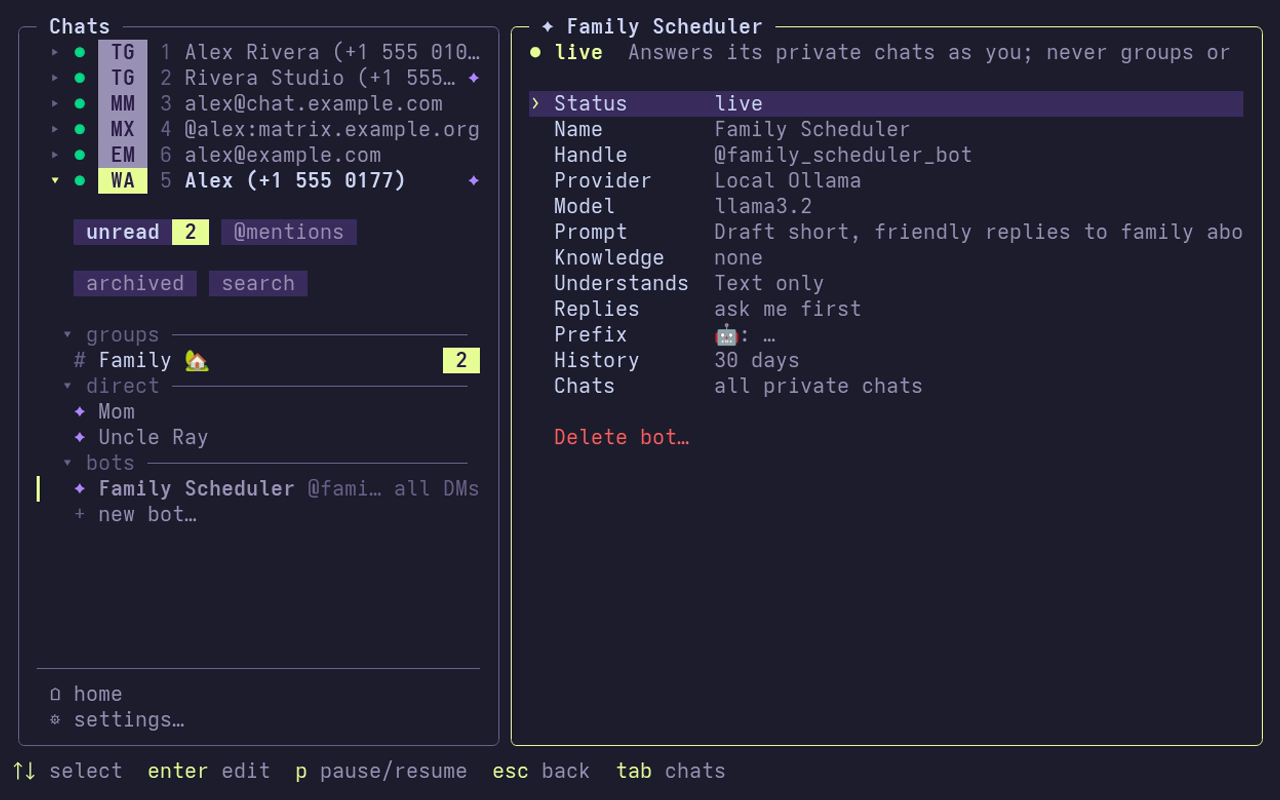
Enter on a bot's row opens the bot's settings in place of the chat. On top, a chip reads ● live or ● paused; p (or a click on it) pauses or resumes the bot, as does the Status row. ↑/↓ choose a row and Enter changes it:
| Row | Value |
|---|---|
| Status | live or paused |
| Name, Handle, Model, Prompt, Knowledge | edited in place |
| Provider | cycles through your providers |
| Understands | text only, media descriptions or vision |
| Replies | ask me first, or automatically |
| Prefix | 🤖 (the default) or 💻; every reply the bot sends starts with it, as 🤖: |
| History | 7, 30 or 90 days |
| Chats | all private chats, or N selected; opens the chat picker |
| Manager bot | Telegram only: the account's manager bot; Enter pastes its token |
| Bot account | Mattermost and Telegram: not registered (Register…), or @username on the account |
| Rotate token…, Unregister… | while registered; each asks first |
| Delete bot… | asks first, starting on Cancel; a registered bot is disabled on the server first |
Delete bot… (and Unregister…) sit apart at the bottom, in red. When the pane is wide enough, a column on the right shows what the bot is connected to (the account, the bot account if registered, and the chats it answers) and its latest messages, newest first. If the last reply failed, the line beside the chip says why. Esc goes back, and Tab moves focus as usual.
Picking chats
The chat picker is a modal over the bot's pane:
╭─ chats Ava answers ──────────────────────────────╮
│    ○ All private chats                           │
│    ● Selected users                              │
│    [x] You                    notes to yourself  │
│ ╭──────────────────────────────────────────────╮ │
│ │ ra                                           │ │
│ ╰──────────────────────────────────────────────╯ │
│ 4 matches                                        │
│ ▎› [x] Person A                                  │
│    [ ] Person B                                  │
│    [-] Person C                       ✦ Support  │
│    [ ] Person D  @person-d · global              │
│ ──────────────────────────────────────────────── │
│ space tick  esc close                1 selected  │
╰──────────────────────────────────────────────────╯
All private chats and Selected users are a radio list: ↑/↓ select a row and Space (or a click) picks it. Selected users lists the people recently chatted with; typing filters them. On Telegram and Mattermost typing also searches everyone on the server, so a bot can be set to answer a private chat that has not started yet. Ticking a person found there tells them nothing. Matrix and WhatsApp only know a private chat's ID once it exists, so there only existing chats can be picked. Each pick or tick is saved at once; Enter or Esc closes the picker.
No private chat has two bots:
- Chats another bot answers show
[-]and its name, and cannot be ticked. - All private chats is unavailable while another bot answers any.
- While another bot answers all of them, the picker only shows that and the You row (where there is one); Esc closes it.
- A paused bot keeps its chats. Deleting a bot frees them.
Your own chat
On Telegram (Saved Messages), Mattermost and WhatsApp the picker has a You row under the radio list: a tick for your chat with yourself, the sidebar's you chip. It is apart from All private chats and Selected users, so a bot can answer it whichever of those it has, and only one bot of the account can tick it (another bot's shows [-] and its name). There you are the one asking: every message you write in that chat, in wiregram or on another device, is a question for the bot, and it answers as you. Without its own instructions the bot acts as your assistant, and the rules for strangers' messages are left out. Its replies are told apart from yours by message ID, so it never answers itself.
In the sidebar a violet ✦ follows the account's name (dim while all its bots are paused), and the account chooser gives each bot a chip with its own ✦ and name. Each private chat a bot answers while on shows a ✦ in place of its @.
Registering a bot on Mattermost
A bot can also get an account of its own on the Mattermost server, so people can message it directly. Your account needs the permission to manage bots, and the server must allow bot accounts.
- Register… on the Bot account row creates
@handleon the server as a bot you own, with the bot's Name as its display name, and gives it an access token. If the handle is taken, change it and register again; one of your own bots unregistered earlier is taken back instead. - While wiregram runs and the bot is on, it signs in as the bot and answers the private messages people send to
@handle, as the bot, with the same prompt, provider and reply mode. Messages from other bots are never answered. - Renaming a registered bot's Name or Handle renames it on the server first.
- Rotate token… issues a new token and revokes the old one. Unregister… revokes the token and disables the bot on the server; you can register it again later.
- Deleting a registered bot, or removing its account, disables it on the server first.
Registering a bot on Telegram
Telegram bots are created inside wiregram through Telegram's managed bots: your account creates the bot, which you own, and a manager bot of yours controls it and hands wiregram its token. Each Telegram account needs its manager bot once:
- In @BotFather, create a bot (or pick one of yours) and turn on Bot Management in its settings.
- In any bot's pane on that account, Enter on Manager bot and paste that bot's token. Wiregram checks that it may manage bots and keeps it in
wiregram.db.
Then Register… on a bot's Bot account row creates it on Telegram:
- Its username is the handle, with
_botadded unless it already ends inbot(Telegram requires it). If it's taken, change the handle and register again; one of your own bots under the same manager is taken back instead. - A Telegram bot's username can't change afterwards, so the handle stays as registered; renaming the Name renames the bot.
- Rotate token… has the manager issue a new token. Unregister… revokes the token, so the bot stops answering; Telegram has no call to delete a bot, so delete it in @BotFather to free the username.
- Errors come back in one line: too many bots (delete one in @BotFather; Premium raises the limit), a manager without Bot Management, a refused token.
A Telegram bot can't load its chats or their history, so its inbox holds only the private chats and messages it receives while wiregram runs.
The bot inbox
A registered bot (on Mattermost or Telegram) gets an ↳ inbox row under its row in the bots section, with the number of replies waiting for approval. Enter on it opens the bot's own private chats as cards over its connection, those with a reply waiting first, marked ✦ reply waiting. Enter or a click on a card opens the chat, titled ✦ @handle · NAME:
- The ✦ Bot suggests card works as in your own chats: Ctrl+Y sends the reply as the bot, Ctrl+E moves it into the composer, Ctrl+X discards it.
- Whatever you send in the composer is sent as the bot, including an edited suggestion; the placeholder says so. The bot's messages show as
✦ NAME. - Esc goes back to the inbox, then to the list.
The inbox needs the bot on and its account online, since it reads over the bot's connection.
Tokens are kept in wiregram.db and never shown.
Approving replies
With Ask me first, a chat whose bot has a reply waiting gets a ✦ before its title in the sidebar. In the open chat a violet ✦ Bot suggests card sits above the composer with the reply:
| Key | Action |
|---|---|
| Ctrl+Y | Approve: send it as the bot |
| Ctrl+E | Edit: move the text into the composer; you then send it as yourself |
| Ctrl+X | Discard |
The keys work while the composer is empty, and the card's buttons can be clicked. Sending your own reply also drops a waiting suggestion. Suggestions are kept in memory only, so quitting loses them.
Which messages came from a bot
Every message a bot sends is recorded, and the chat shows ✦ NAME in violet in its sender's place instead of you, including after a restart.
Testing with dry-run
wiregram dry-run prints the reply the bot answering the chat would give to a message, without sending or recording anything. It works while the bot is paused, so you can try the prompt before turning it on.
wiregram dry-run mattermost alice bobStorage
Providers, bots, their chats, registrations and tokens, conversation history and the record of sent messages are kept in wiregram.db, which also enforces that no private chat has two bots and no two bots of an account share a handle. The sent-message record outlives the history setting. Removing an account deletes its bots and that record.
Upgrading
Each account's bot from the previous version becomes its first bot, with its chats kept and a handle made from its name.